
Driver App
1. Introduction
1.1 Purpose of the Manual
This document provides guidance to users of the Driver App of the Solid Waste Management Information System (SWMIS). It explains how to access the App on the Driver Smatphone, navigate its features, and perform key tasks related to waste data management, monitoring, and reporting as per the Integrated Solid Waste Management Law Number 80 dated 18 October 2018.
This manual covers the Driver Mobile Application, which enable real-time execution and tracking of waste collection, transport, and facility operations within the SWMIS platform
1.2 Driver App Overview
Driver Mobile Application
The Driver Mobile Application is designed for waste collection and transport drivers operating under registered transporter stakeholders. It provides drivers with access to assigned routes, operational tasks, and real-time trip information.
Through the application, drivers can view routes, navigate collection points, access manifests, track trip status, and generate QR codes for facility check-in. The application ensures seamless coordination between drivers and facilities, enabling efficient execution of waste collection and transfer operations while supporting accurate data capture and system integration.
1.3 SWMIS Driver App Intended Users
The software is designed for the following user groups:
User Group Type | Description |
Transporters | Reports operational data from waste transportation |
Driver (Mobile App)
The Driver Mobile Application is designed for waste collection and transfer drivers registered under a Waste Transporter within the SWMIS platform.
The application provides drivers with the tools required to execute assigned routes, manage transport operations, and ensure accurate tracking of waste collection and transfer activities.
Purpose
To support drivers in performing their daily operations by providing real-time access to route information, assigned tasks, and operational workflows.
Key Functions
The Driver Mobile Application enables drivers to:
- Log In Securely
Access the application using assigned credentials. - View Assigned Routes
Access daily routes and assigned collection or transfer tasks. - Navigate Route Waypoints
Follow designated routes and locations for waste collection or delivery. - View Associated Manifests
Access collection and transfer manifests linked to their assigned routes. - Monitor Transfer Assignments
View and manage assigned transfer operations between facilities or recipients. - Track Trip Status
Monitor the progress of trips, including start, in-progress, and completed statuses.
Access Control
Access to the Driver Mobile Application is restricted to users assigned the Driver role, ensuring that only authorized personnel can perform transport-related operations within the system.
1.4 Language Selection
The Language Selection screen is the first interface displayed when the Driver Mobile Application is opened for the first time.
This screen allows the driver to select the preferred application language before proceeding to login.
Available Options
- English
- العربية (Arabic)
Once the preferred language is selected, the application will automatically proceed to the Login screen.
The selected language will be applied across the application interface and can be changed later from the application settings.
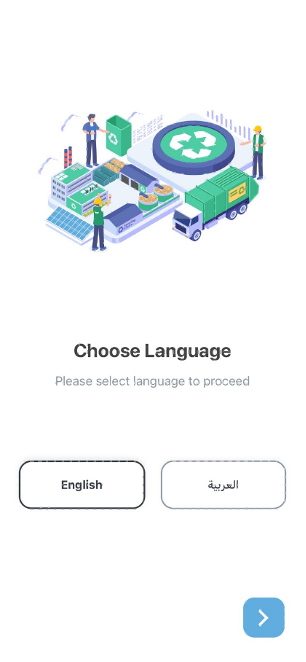
Driver App language selection page
1.5 Login
To access the Driver Mobile Application, the driver must log in using assigned credentials.
Steps to Log In
- Enter the Username.
- Enter the Password.
- Click تسجيل الدخول (Login).
Upon successful authentication, the driver is granted access to the application dashboard and assigned operational tasks.
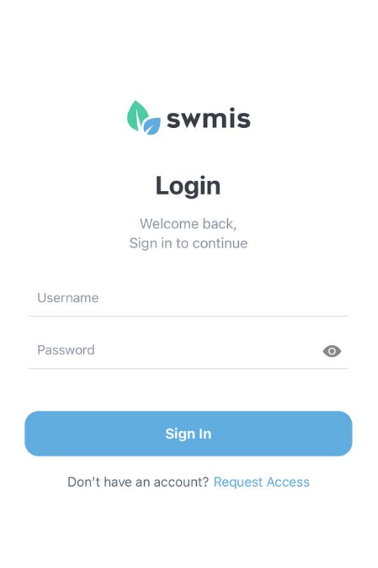
Driver App login page
1.6 Home Screen (Driver Dashboard)
The Home Screen serves as the main dashboard of the Driver Mobile Application and is displayed immediately after successful login.
This screen provides an overview of all routes currently assigned to the authenticated driver and acts as the primary interface for initiating and managing collection and transfer operations.
Purpose
To provide drivers with quick access to their assigned routes, operational tasks, and relevant trip information in a clear and organized manner.
Key Features
- Assigned Routes Overview
Displays a list of all routes assigned to the driver for the current day or operational period. - Route Details
Each route includes key information such as route code, assigned facilities or generators, and associated tasks. - Operational Actions
Allows the driver to select a route and begin the collection or transfer process. - Navigation Entry Point
Serves as the starting point for accessing route waypoints, manifests, and trip-related functions.
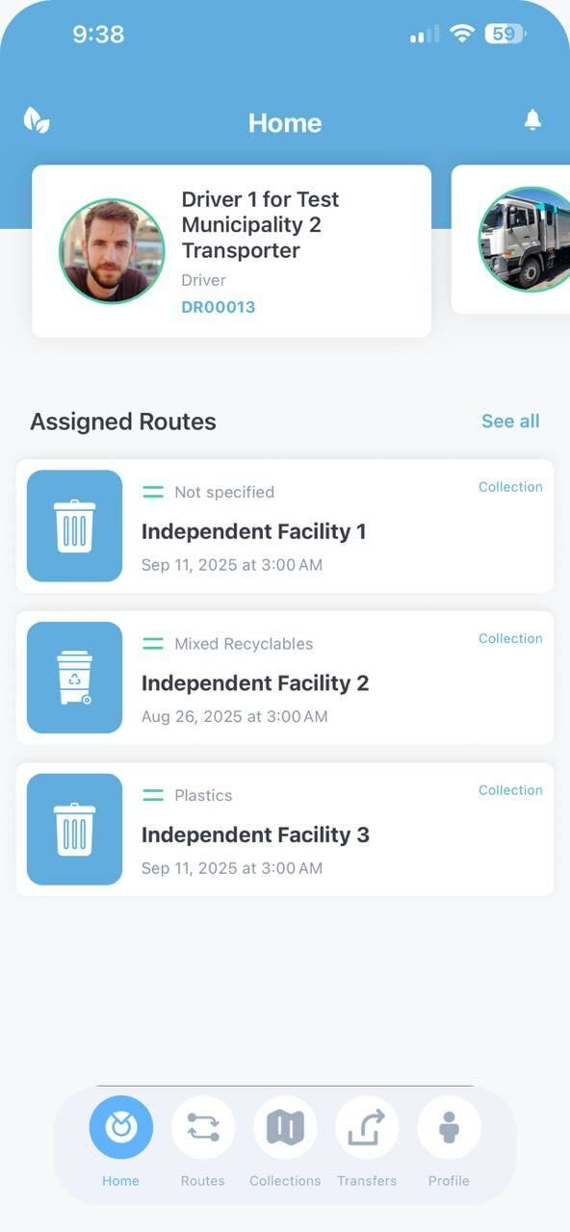
Driver App home page
1.7 Route Collection Data
The Route Collection Data screen provides comprehensive operational information for the selected route and serves as the primary execution interface for waste collection activities.\
This screen allows drivers to view route details, monitor assigned tasks, and manage collection operations throughout the trip.
Purpose
To provide drivers with all necessary information and tools required to execute a route efficiently and ensure accurate recording of collection activities.
Key Features
- Route Overview
Displays key details of the selected route, including route code, assigned locations (generators or facilities), and operational status. - Collection Points / Waypoints
Lists all stops along the route, allowing the driver to track progress and navigate between locations. - Manifest Access
Provides access to associated collection or transfer manifests linked to the route. - Operational Controls
Enables the driver to initiate, update, and complete collection activities at each stop. - Trip Progress Tracking
Displays the current status of the route (e.g., not started, in progress, completed). - QR Code Generation (if applicable)
Allows the driver to generate a QR code for facility check-in, enabling seamless integration with the Facility Application.
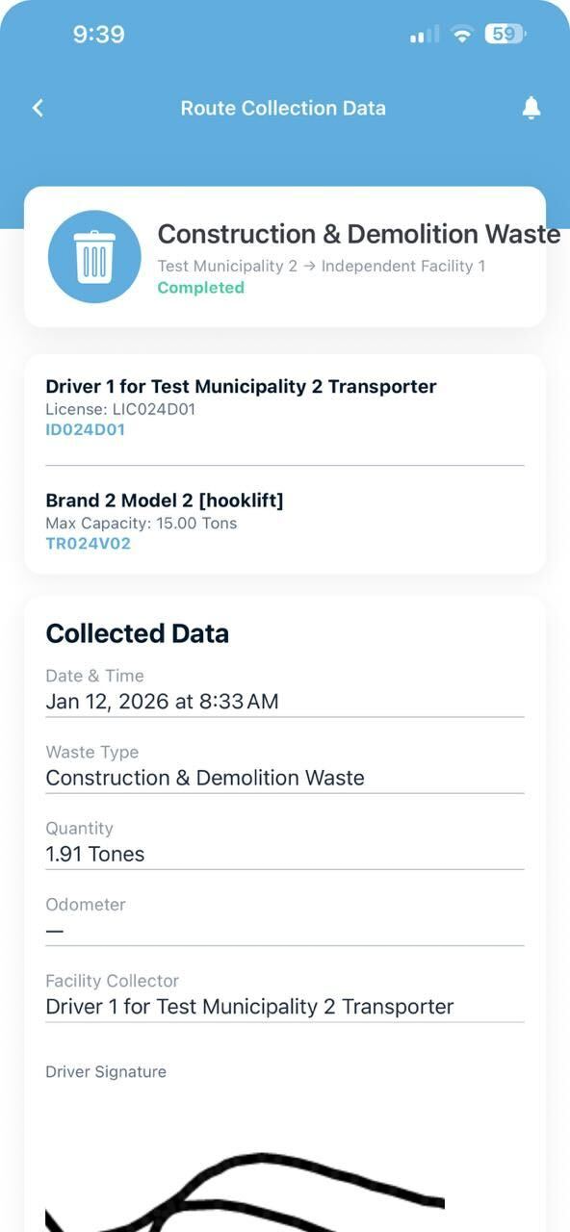
Route Collection Data page
1.8 Route Details Screen
The Route Details Screen provides detailed information about a selected route and allows the driver to initiate collection operations.
When the driver selects the “Collect” action, the system generates a QR Code confirmation popup associated with the active trip.
QR Code Confirmation
- The generated QR Code represents the specific collection or transfer operation.
- The driver presents this QR Code at the facility upon arrival.
- Facility operators scan the QR Code using the Facility Application to register the incoming vehicle and initiate the weighbridge process.
This mechanism ensures accurate identification of the trip, seamless data exchange between the Driver and Facility applications, and proper recording of collection activities into the SWMIS Platform in Real-time.
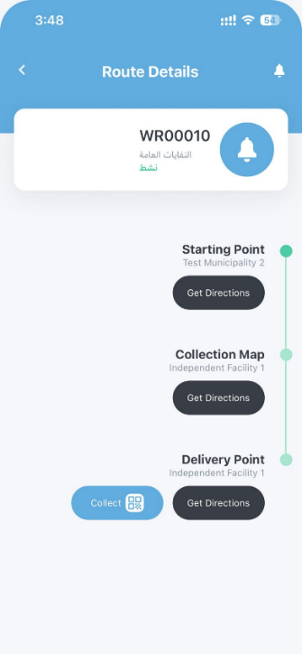
Route Details page
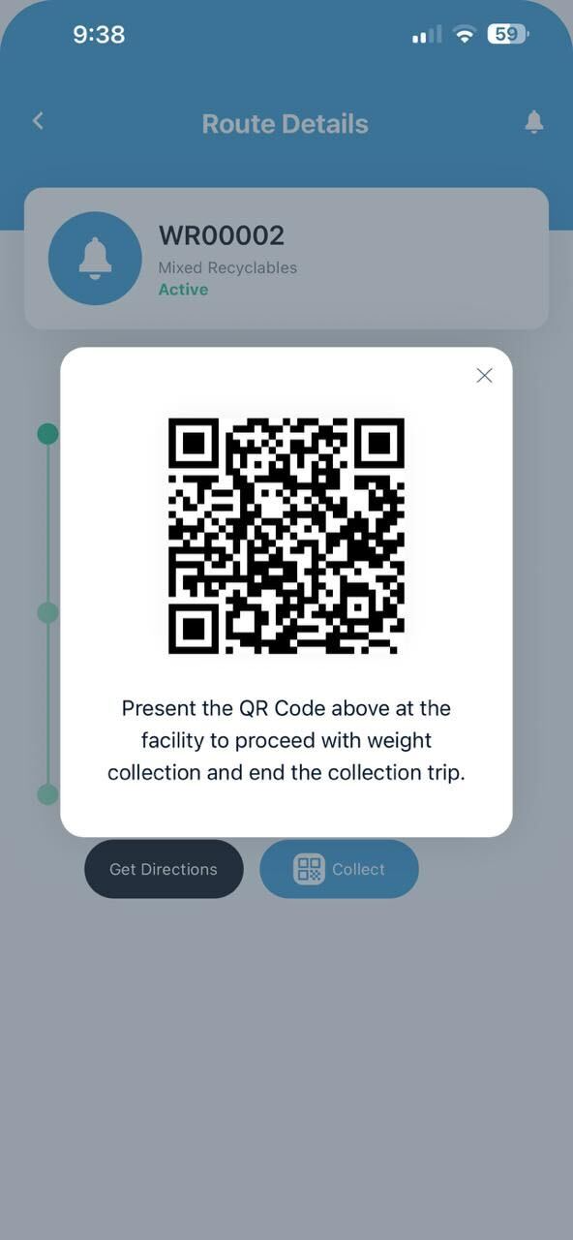
QR Code scanning page (to be scanned by facility)