
Facility App
2. Facility Tablet Application (App)
The Facility Application is designed for waste management facilities, including treatment, sorting, transfer, recycling, composting, and disposal sites registered within the SWMIS platform.
The application is typically deployed on a tablet device located at the facility weighbridge or reception area, enabling real-time data entry and operational control.
Purpose
The Facility Application supports the day-to-day operations of waste facilities by enabling accurate recording, tracking, and management of incoming and outgoing waste.
Key Functions
The application allows facility operators to:
- Receive Collection Vehicles
Register incoming vehicles and verify associated collection details. - Record Entry and Exit Weights
Capture weight measurements at the weighbridge for accurate tracking of waste quantities. - Complete Collection Manifests
Validate and finalize collection records associated with incoming waste. - Manage Transfer Manifests
Create and process waste transfers to other facilities or final disposal sites. - Capture Digital Signatures
Record confirmations from drivers or authorized personnel. Process Outbound Waste Transfers
Manage dispatch operations and ensure proper documentation of outgoing waste.
Access Control
Access to the Facility Application is restricted to users assigned to a Facility stakeholder, ensuring that only authorized personnel can perform operational tasks within the application.
2.1 Login
Facility users must authenticate using their assigned credentials to access the Facility Application.
Authentication ensures that only authorized personnel can access operational functions and record data within the system.
Steps to Log In
- Enter the assigned email.
- Enter the corresponding password.
Click Login to access the application.
Upon successful authentication, the user is redirected to the main operational interface of the Facility Application.
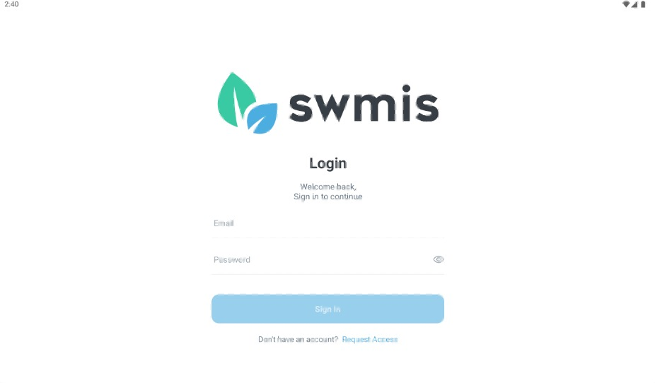
Facility App login page
2.2 Dashboard
The Dashboard is the main operational screen displayed upon successful login to the Facility Application. It provides quick access to core functions and real-time visibility of ongoing facility operations.
The dashboard is divided into two main sections:
Collection Registration (Inbound Process)
The first section allows facility operators to initiate and manage incoming waste collection operations.
Through this interface, operators can:
- Start a New Collection
Initiate a collection process by scanning the QR Code generated from the Driver Application. - Register Incoming Vehicle
Upon scanning, the system retrieves the relevant trip and driver details associated with the incoming waste truck. - Record Entry Weight
Capture the vehicle’s weight at the weighbridge upon arrival (gross or entry weight). - Record Exit Weight
Capture the vehicle’s weight again at departure (tare or exit weight). Automatic Calculation and Logging
The system calculates the net waste weight and records the transaction in the facility log as part of the collection manifest.
This process ensures accurate tracking of waste quantities received at the facility.
Current Records Overview
The second section displays a real-time list of ongoing and recently recorded operations within the facility.
This table provides a quick overview of collection records, including:
- Transporter Name
- Type of Transfer (e.g., collection, transfer)
- Date and Time of the operation
- Entry Weight (recorded at arrival)
Exit Weight (recorded at departure)
This section allows operators to monitor active operations, verify recorded data, and ensure that all transactions are properly captured.
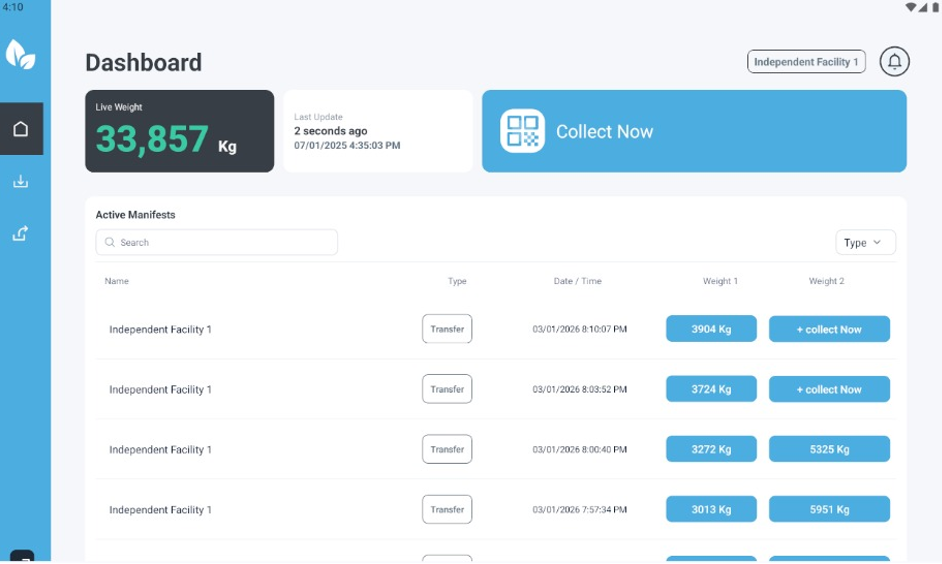
Facility App dashboard page
2.3 Transfer Manifests
The Transfer Manifests feature is used to record and manage the transfer of waste from one facility to another or to an external recipient. It ensures full traceability and proper documentation of outbound waste movements.
Purpose
To maintain a complete and auditable record of waste transfers, ensuring transparency and compliance across the waste management chain.
Traceability
Each transfer manifest captures key information to ensure end-to-end tracking, including:
- Source Facility
- Destination Facility or Recipient
- Transporter
- Driver
- Waste Type
Transfer Categories
Transfer manifests are categorized based on the type of receiving entity:
- Internal – Transfer between facilities within the system
- External Buyer – Transfer to a commercial or industrial buyer
- Farmer – Transfer for agricultural use (e.g., compost or organic waste)
- Other – Any other type of recipient not covered above
Each category defines the nature of the transfer and supports proper classification and reporting.
Creating a Transfer Manifest
To create a new transfer manifest, follow these steps:
- Navigate to Transfer Manifests.
- Click Add New.
- Select the appropriate Transfer Type.
- Click Next.
- Enter all required transfer details (e.g., destination, waste type, quantity, transporter, and driver).
- Click Next.
- Capture or confirm the required digital signature to validate the transaction.
Notes
- All transfer manifests are recorded in the system and can be tracked for audit and reporting purposes.
- Proper completion of transfer details ensures accurate traceability and compliance with regulatory requirements.
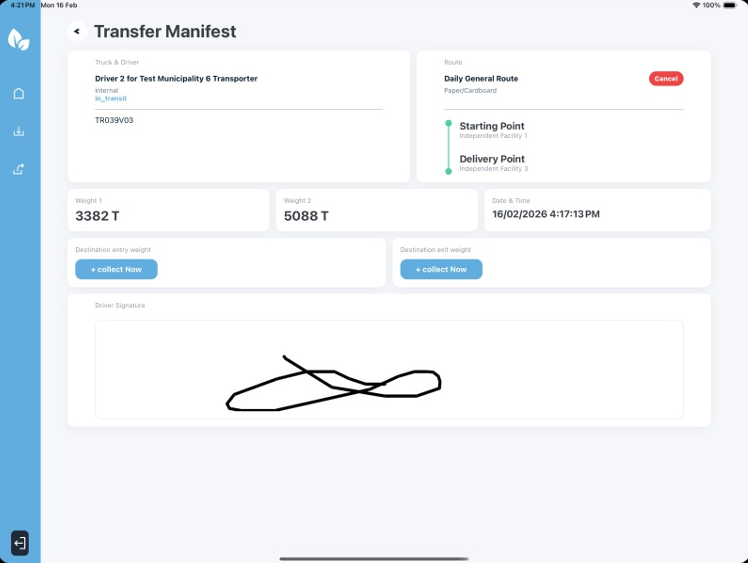
Facility App transfer manifest details
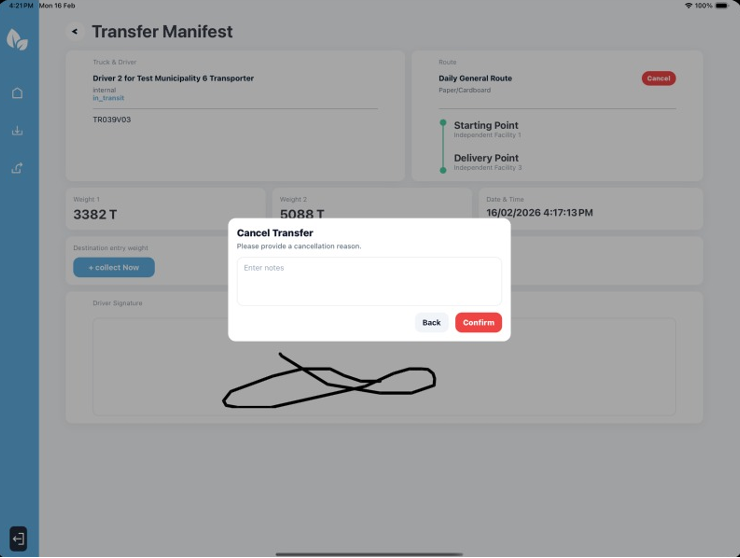
Canceling transfer manifest
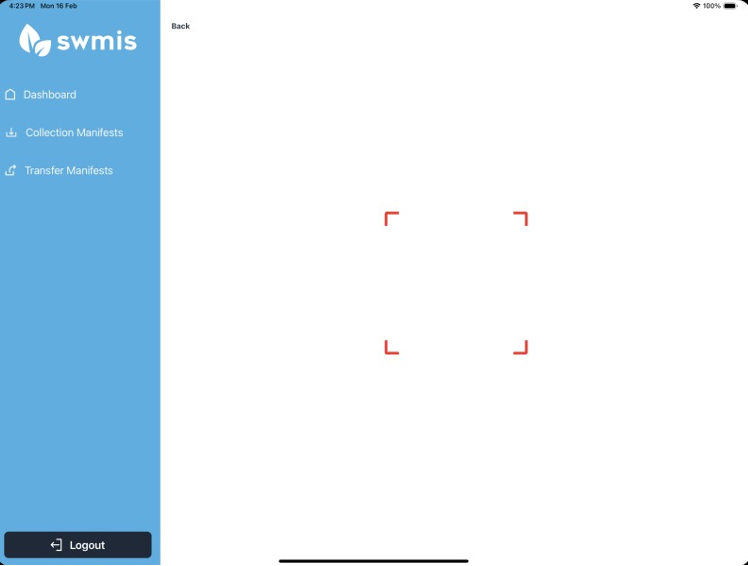
Code scanning page (scanning QR code displayed on Driver App)
2.3.1 Internal
Internal transfers refer to the movement of waste between two facilities that are both registered within the SWMIS system.
These transfers ensure full traceability within the platform, as both the source and destination facilities are recorded and monitored under the same system.
Internal transfers are typically used when waste is moved between facilities for further processing, treatment, sorting, or final disposal.
All internal transfer operations are fully tracked, including associated transporter, driver, waste type, and quantities, ensuring accurate reporting and compliance.
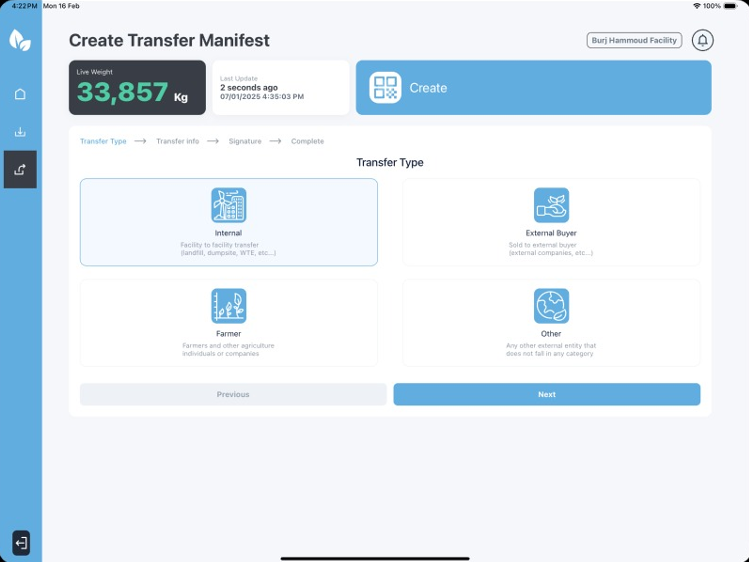
Create internal transfer manifest
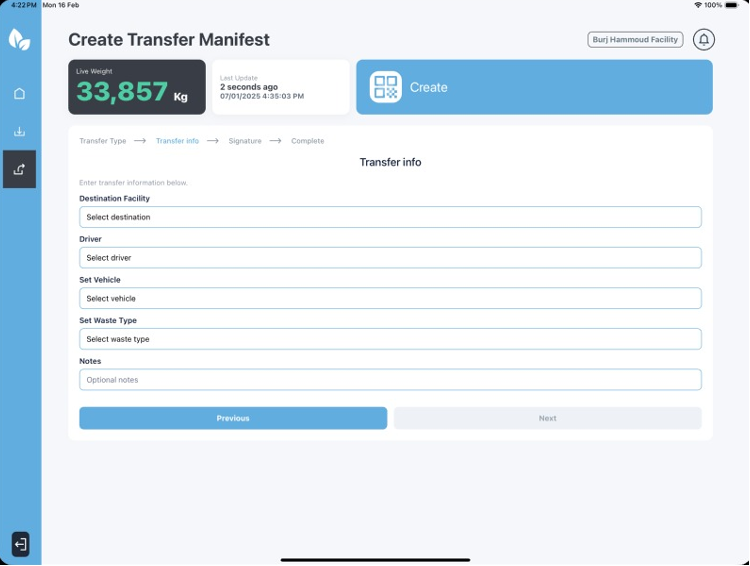
Internal transfer manifest form
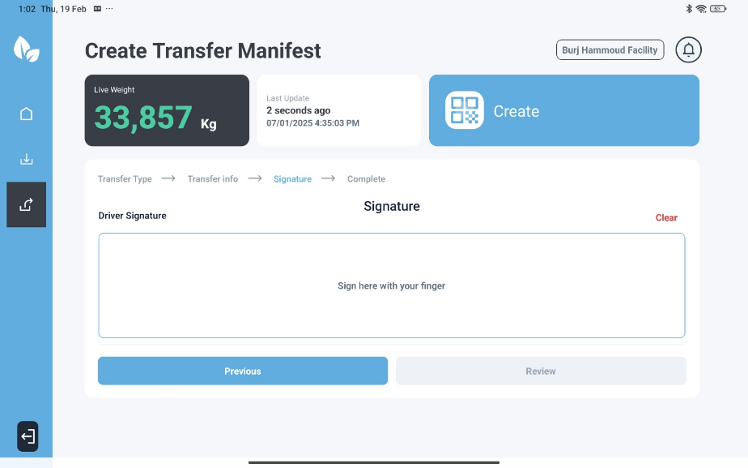
Internal transfer manifest signature
2.3.2 External Buyer
External Buyer transfers occur when waste is sold or transferred to a commercial or industrial entity that is not registered as a facility within the SWMIS system.
These transfers typically involve materials intended for reuse, recycling, or further processing outside the system’s registered facility network.
Although the receiving entity is external, the transfer is still fully documented within the system to ensure traceability, accountability, and compliance with regulatory requirements.
All relevant details—such as transporter, driver, waste type, and transferred quantity—are recorded as part of the transfer manifest.
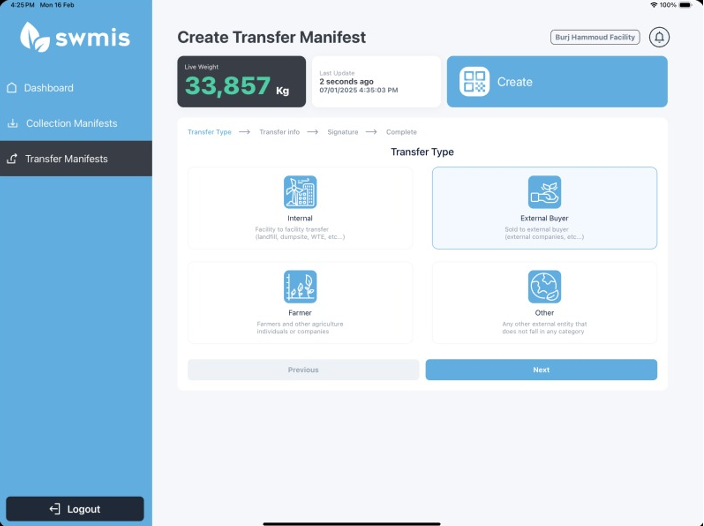
Create external buyer transfer manifest
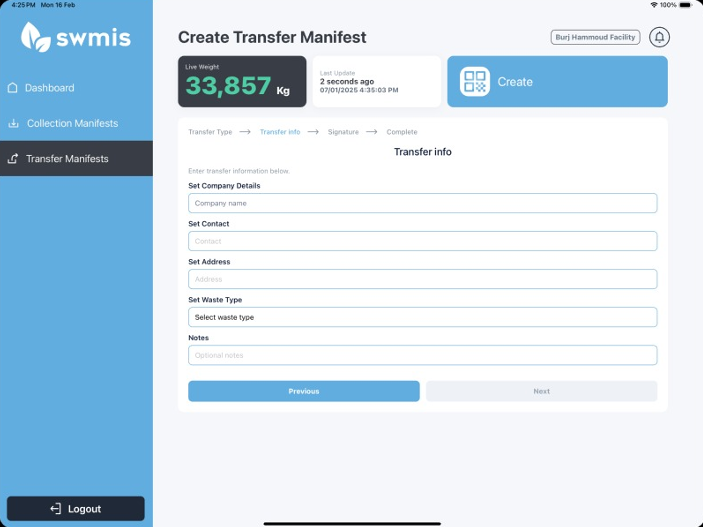
External Buyer transfer manifest form
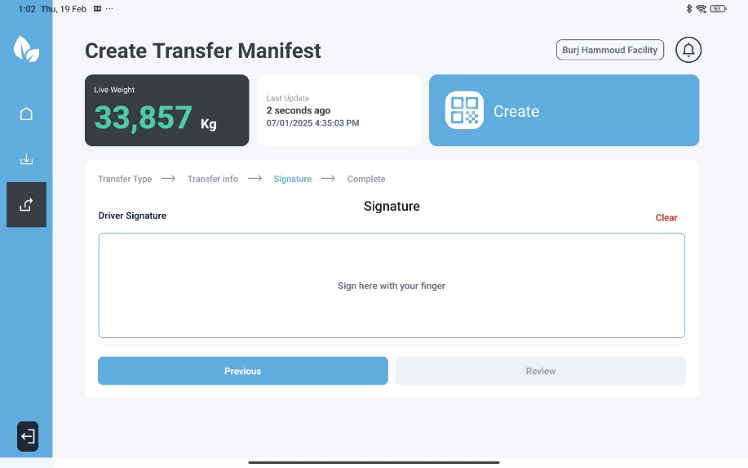
External Buyer transfer manifest signature
2.3.3 Farmer
Farmer transfers involve the distribution of organic waste or composted material to agricultural recipients for reuse in farming activities.
These transfers are commonly used for beneficial reuse purposes, such as soil enrichment or agricultural application of treated organic waste.
Although the recipient may not be a registered facility within the system, all transfer details are recorded to ensure traceability, proper documentation, and compliance with environmental regulations.
Relevant information, including waste type, quantity, transporter, and recipient details, is captured as part of the transfer manifest.
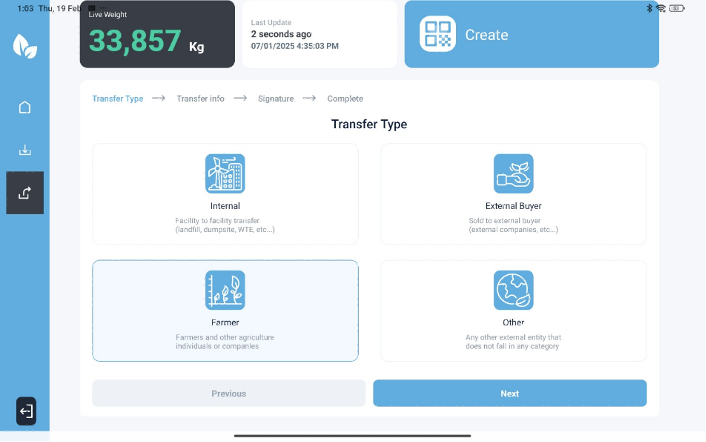
Create farmer transfer manifest
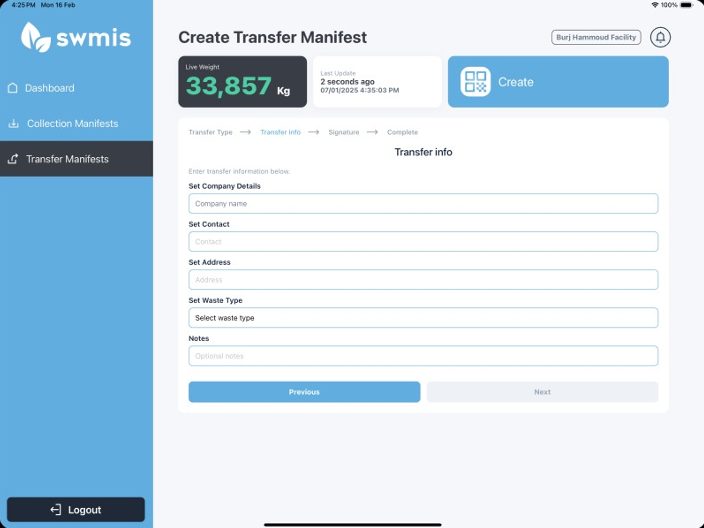
Farmer transfer manifest form
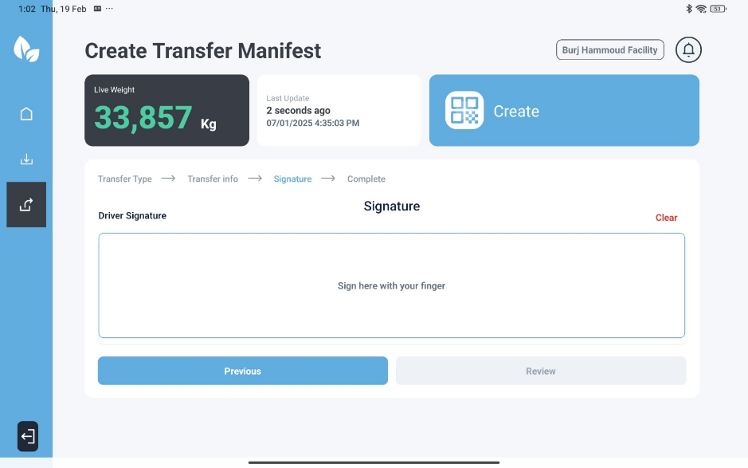
Farmer transfer manifest signature
2.3.4 Other
The Other category is used for transfer cases that do not fall under the predefined categories of Internal, External Buyer, or Farmer.
This category allows flexibility to record special or exceptional transfer scenarios while maintaining proper documentation and traceability within the system.
When selecting this category, users must ensure that the Recipient Name and relevant transfer details are accurately entered.
All associated information—such as waste type, quantity, transporter, and driver—is recorded as part of the transfer manifest to ensure completeness and compliance.
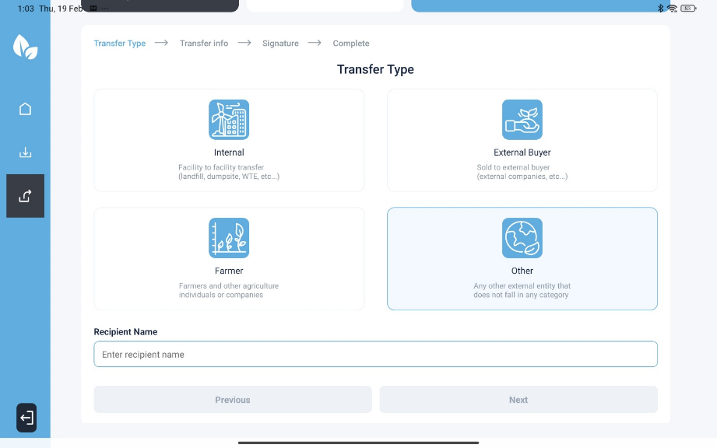
Create other transfer manifest
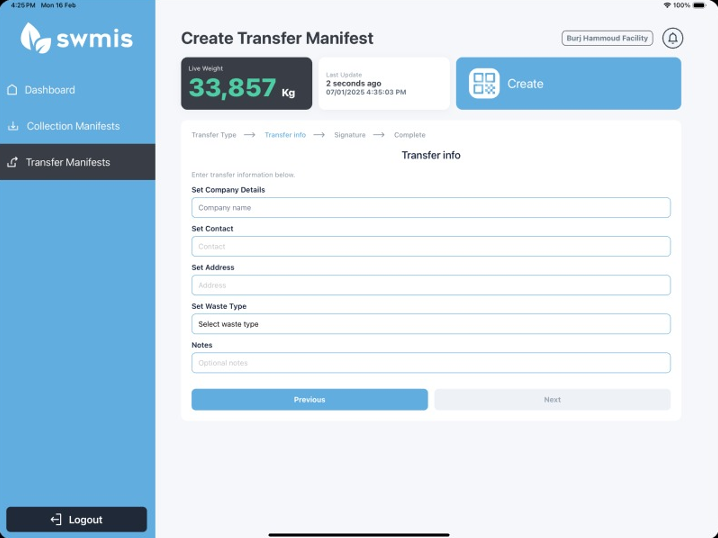
Other transfer manifest form
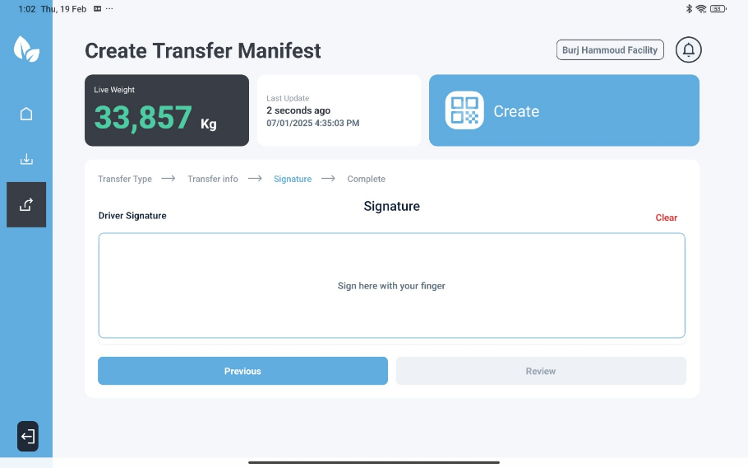
Other transfer manifest signature